
How to Create an Order
Creating a New Order in RS Express System
1. Navigate and login here https://rsxpress.dsapp.io/Account/Login
2. Click “New Order”
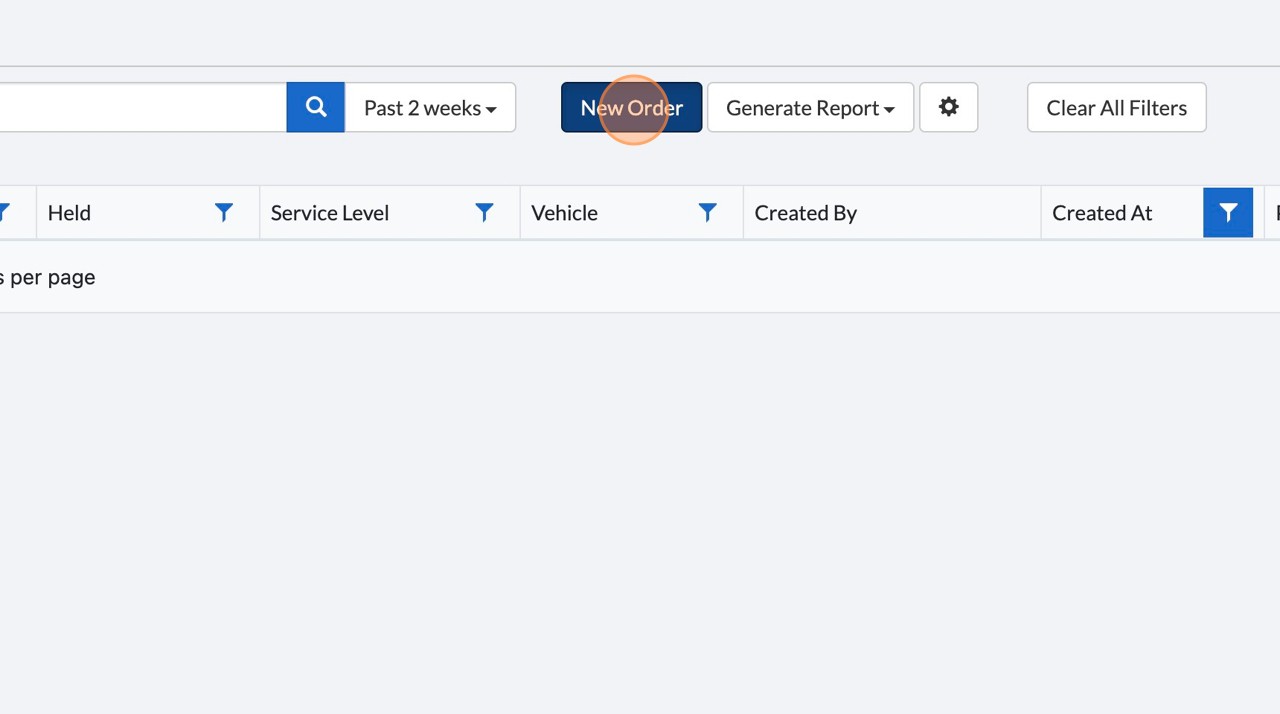
3. Click the “Company” field and fill out the company name. If pickup address is not a company leave blank.
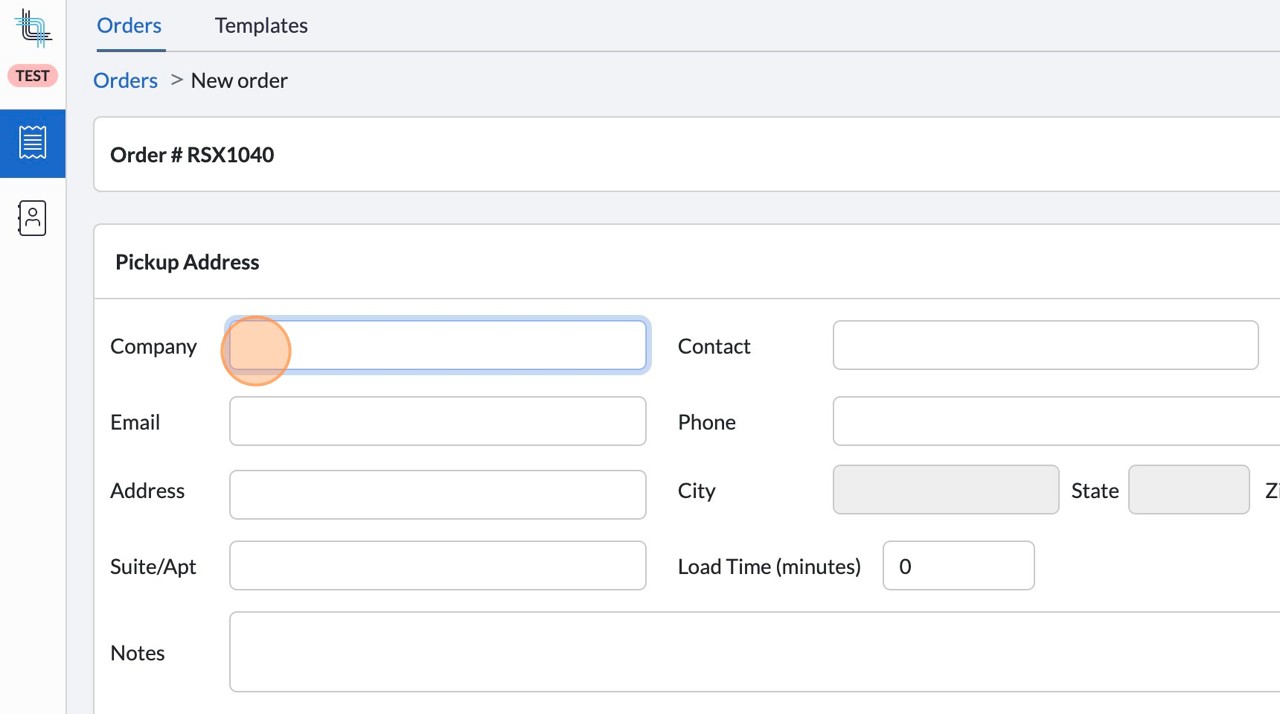
4. Click the “Contact” field and enter the name of the person who will be handing off
the package. If there is not a specific person this can be left blank or filled with a department ie.
Shipping
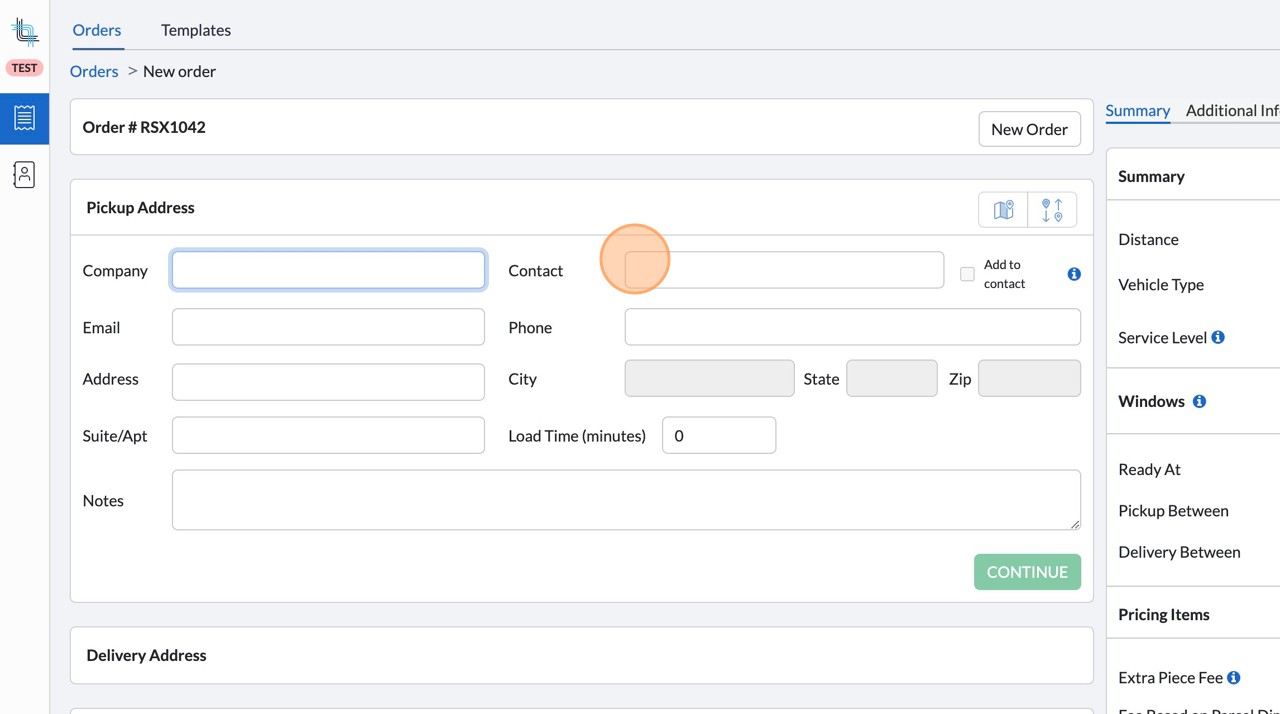
5. Click the “Email” field, enter the email details for the pickup contact. This can be left blank.
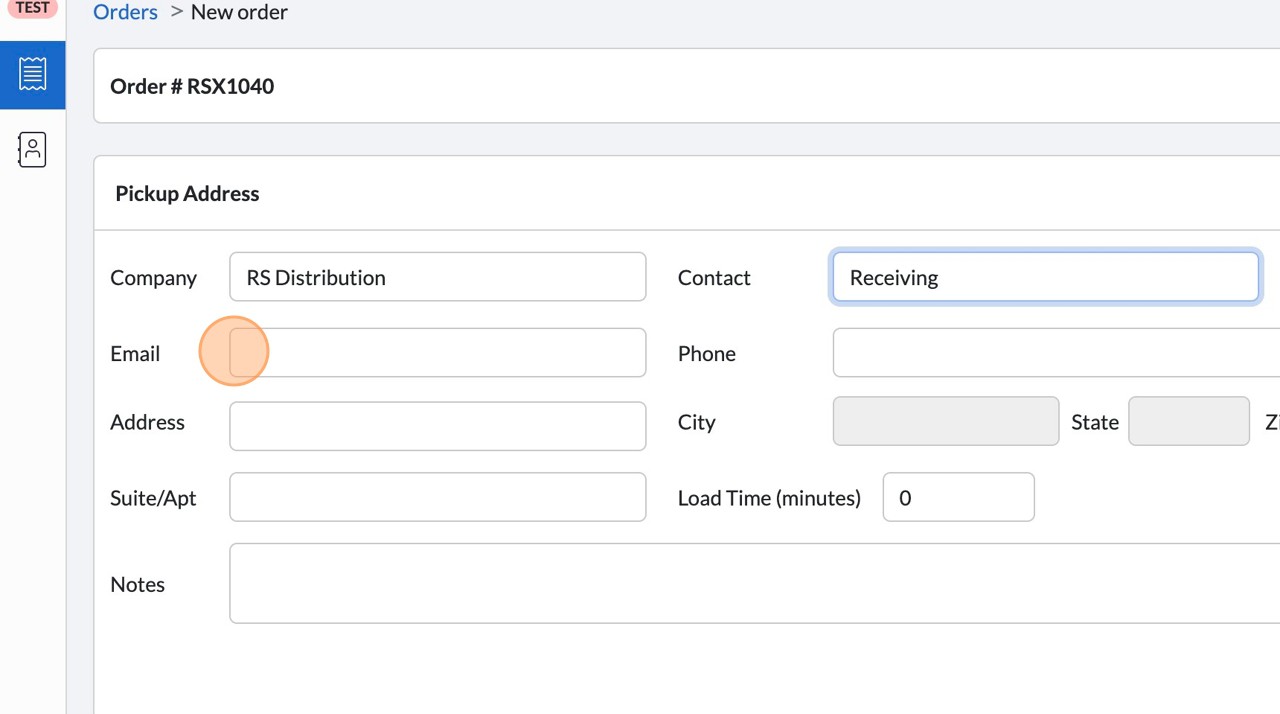
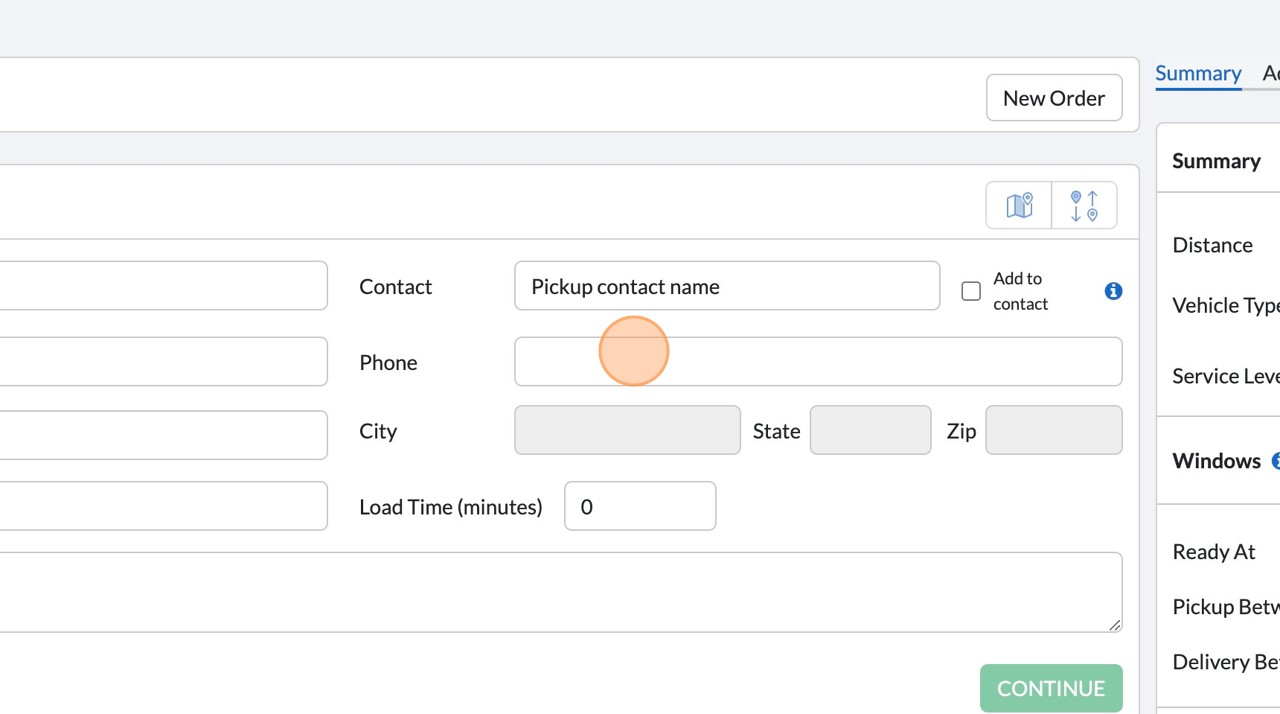
6. Click the “Phone” field and enter phone number of pickup contact.
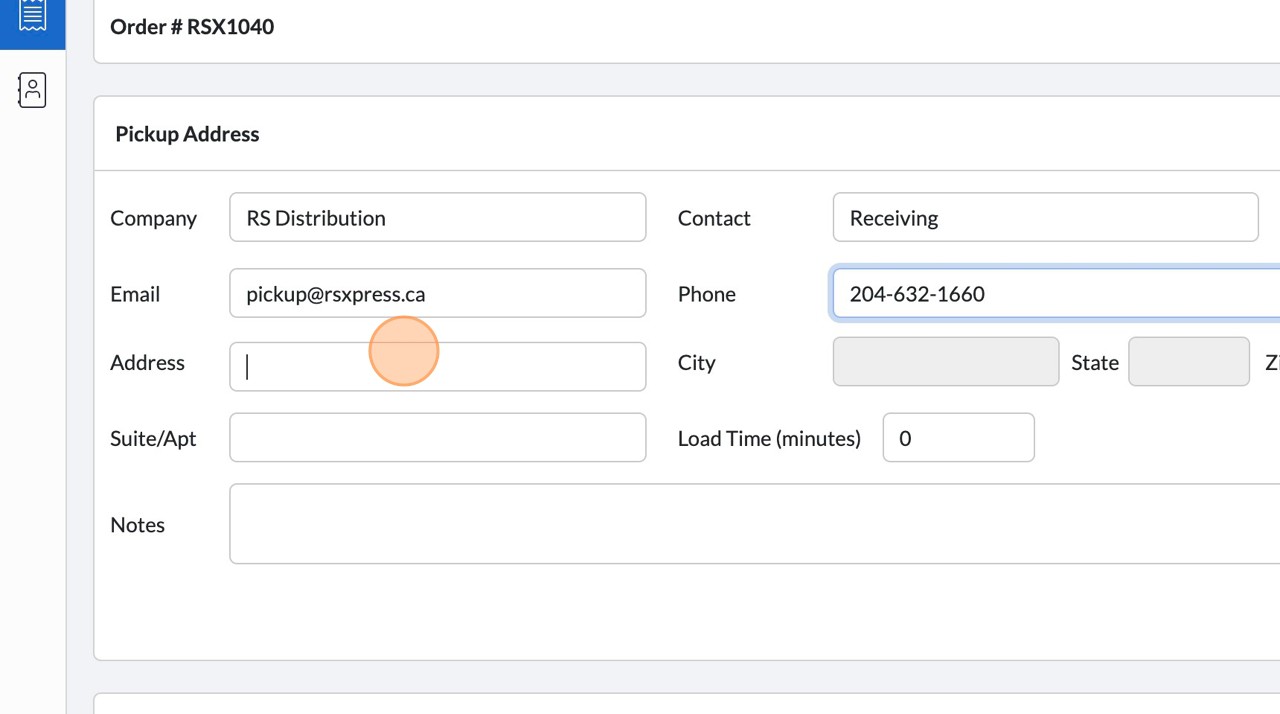
7. Click the “Address” field
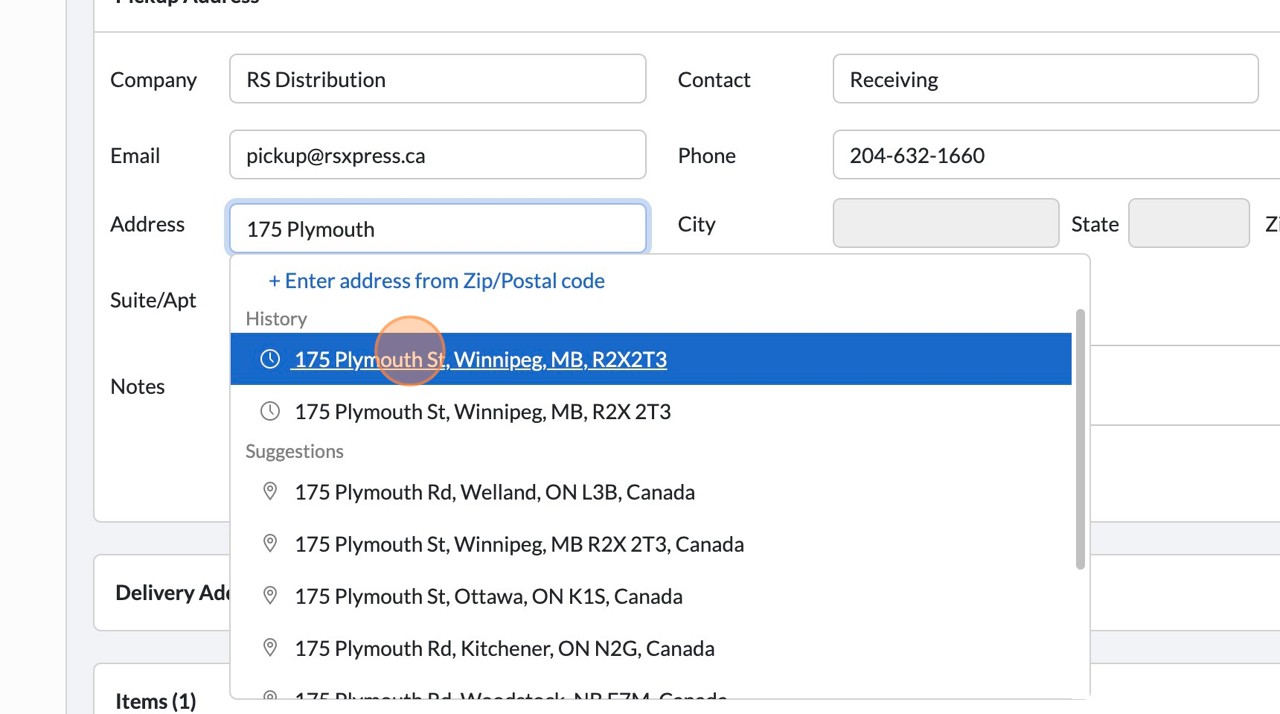
8. Start typing your address. s you type suggestions will presented. Once you see the full pickup address Click
on that option to auto populate. See Step 9
9. Click “175 Plymouth St, Winnipeg, MB, R2X2T3”
10. Click the “Notes” field. Enter any notes relevant to the pickup here.
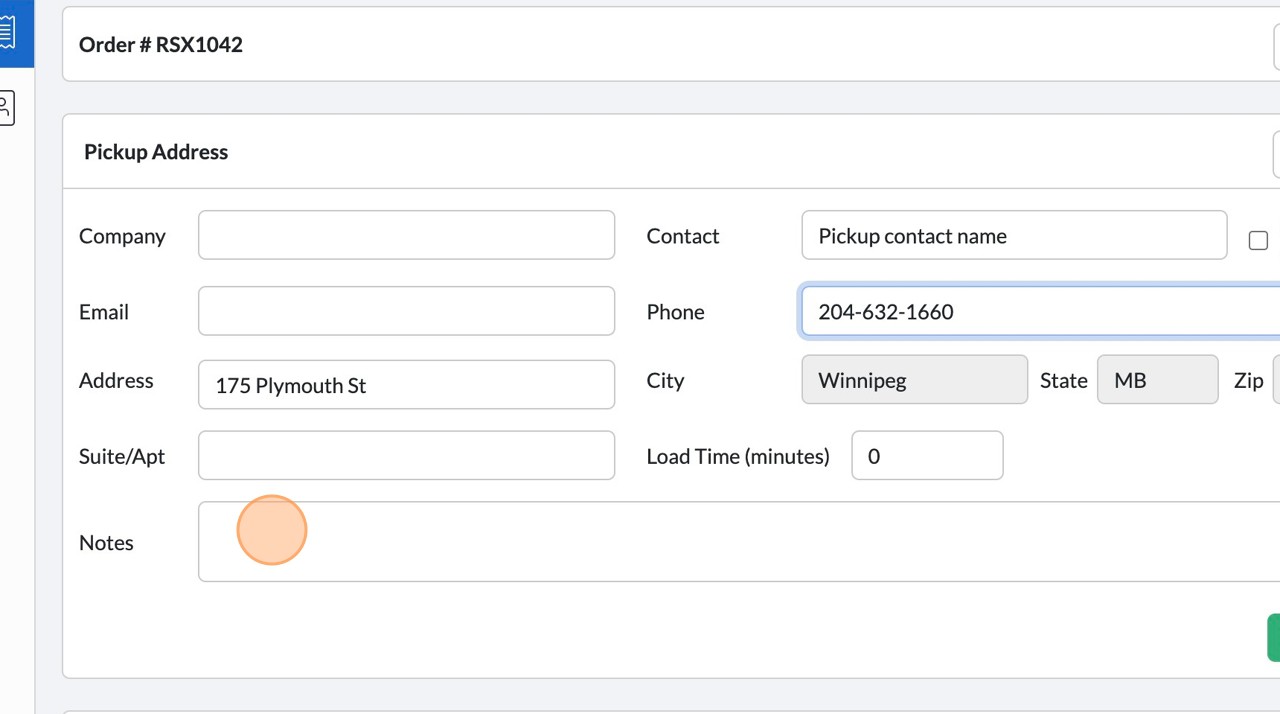
11. Click “Continue”
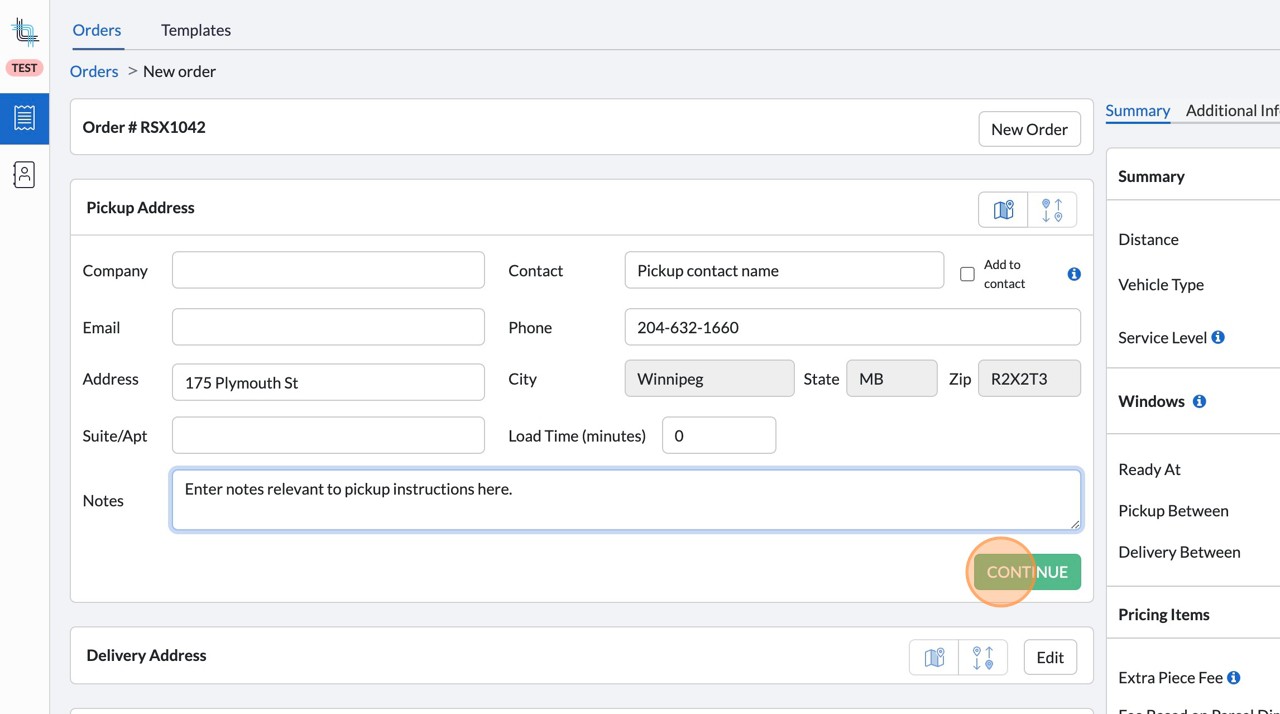
12. Repeat steps 3 to 11 for the Delivery Address section
13. Scroll down to the “Items” section
14. Select what type of package is being sent:
• Box
• Envelope
• Pallet
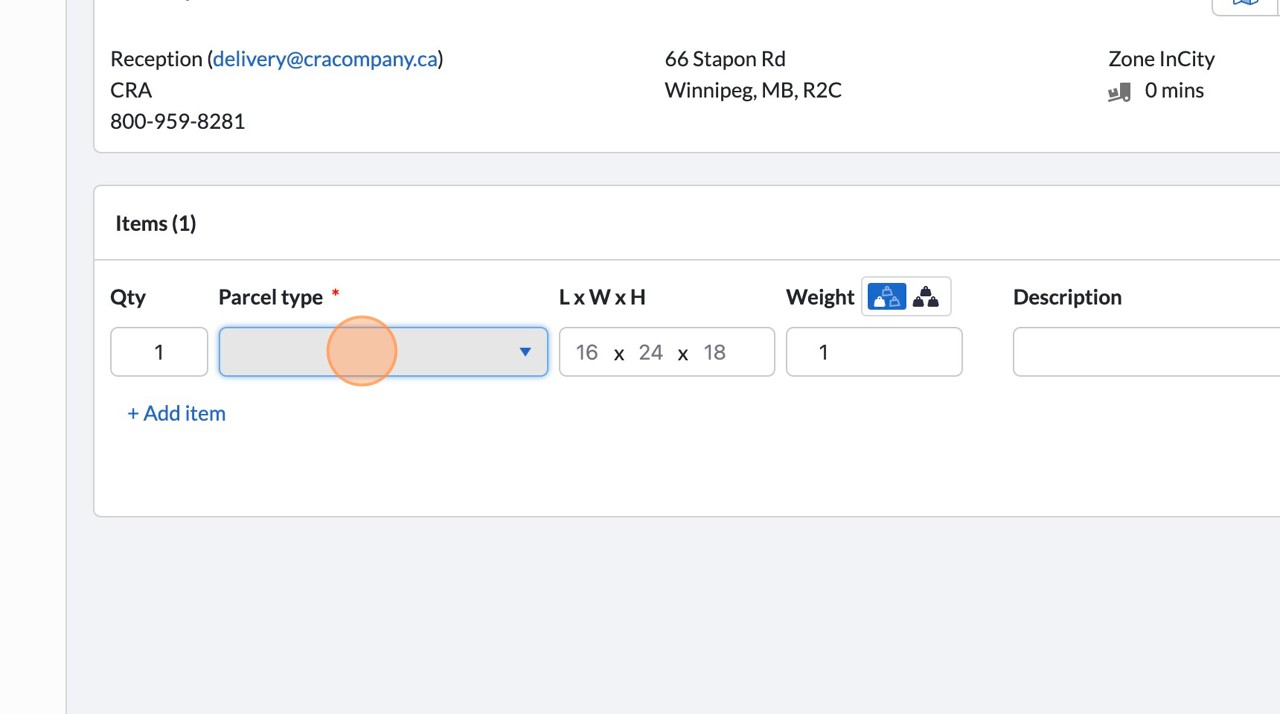
15. Adjust the quantity to match shipment
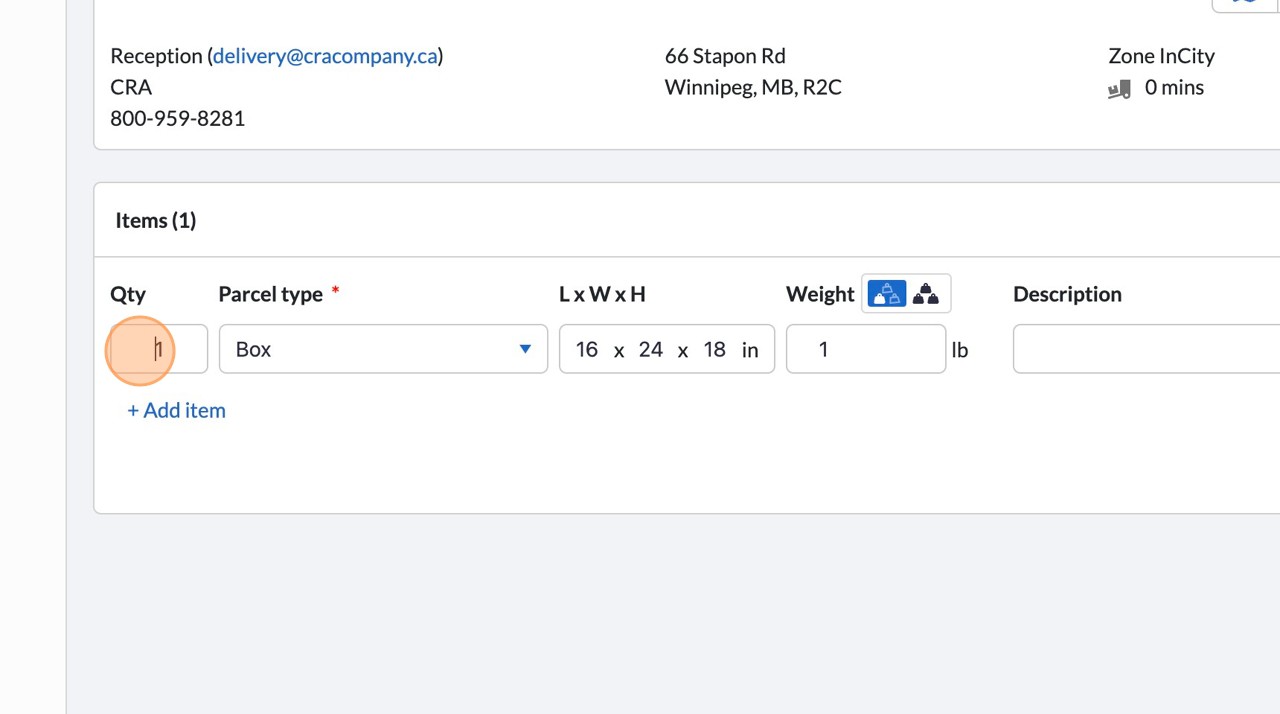
16. Adjust dimensions to match packages being shipped
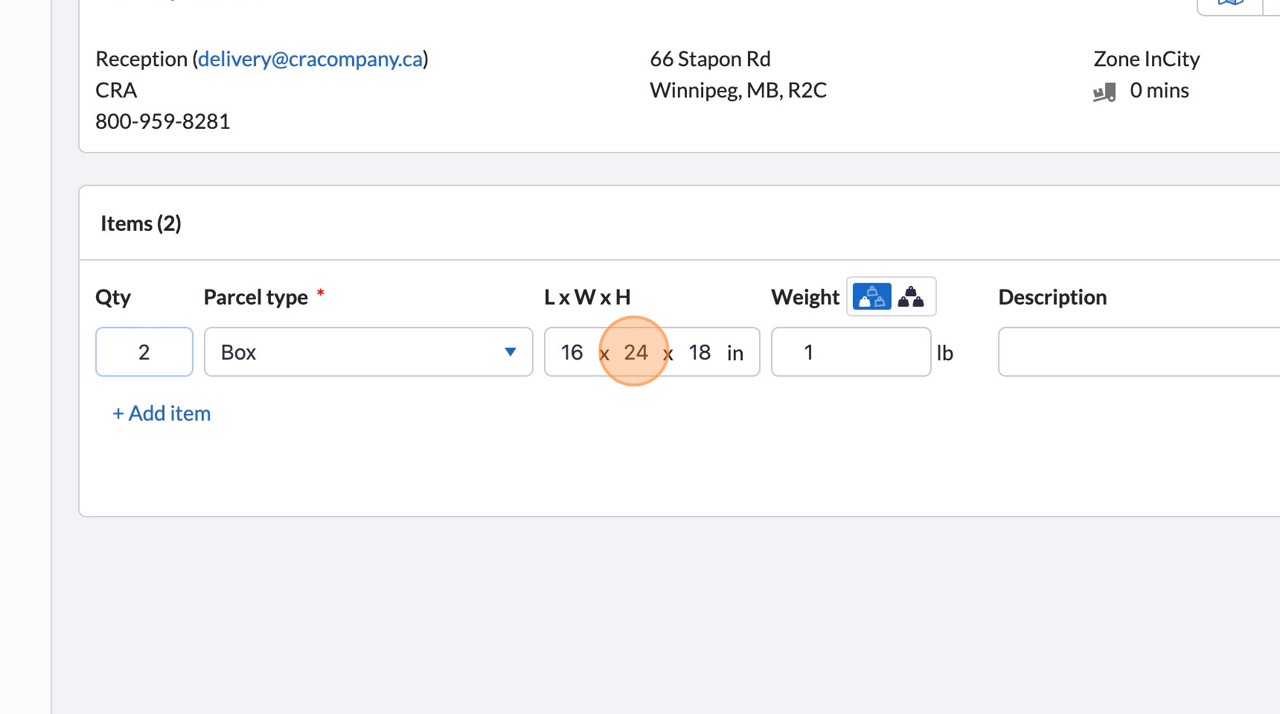
17. Adjust the weight to reflect the items being shipped
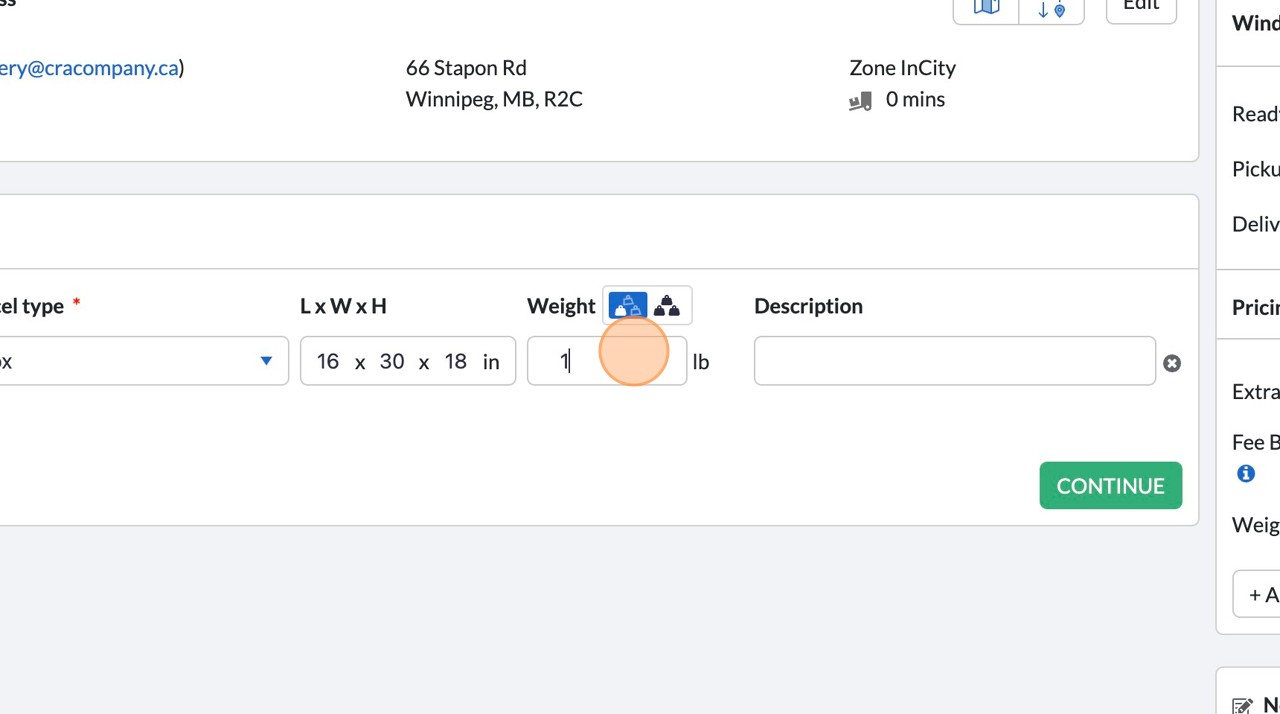
18. Optional: Add item description
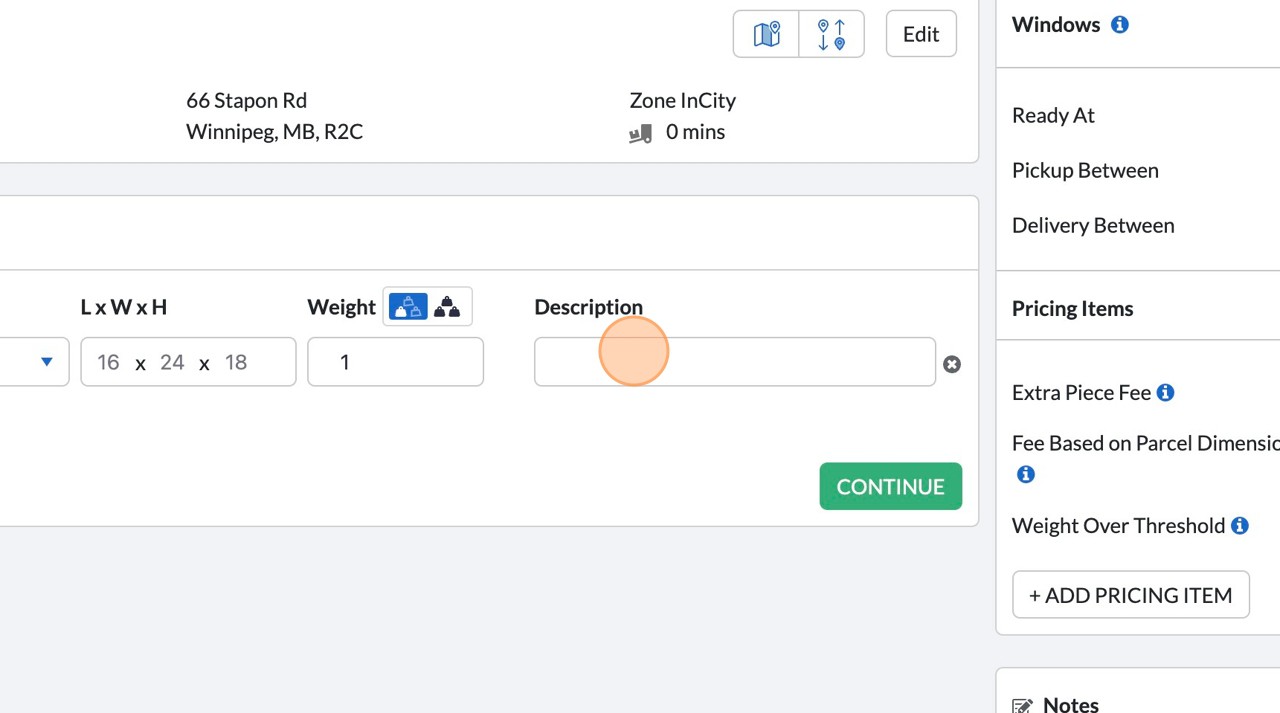
19. Click “+ Add item” to add additional items
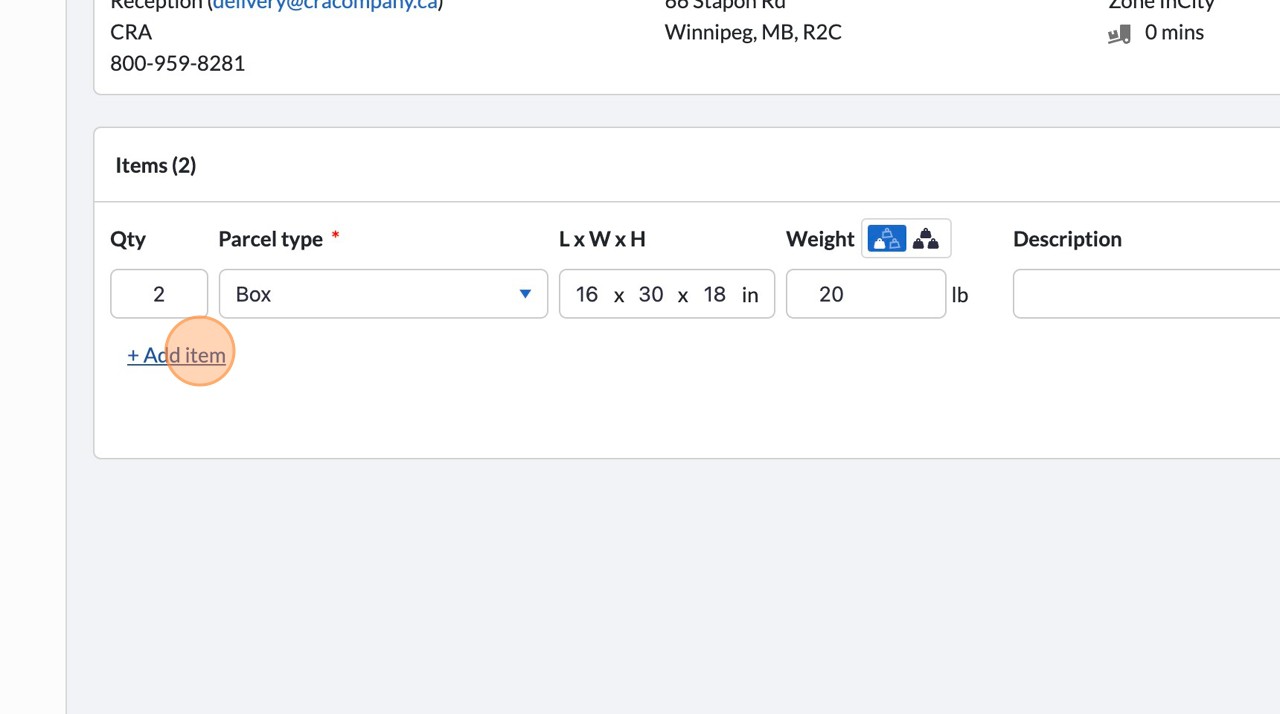
20. Fill out new item details, follow steps 14 to 18.
21. Click “Continue” to finish editing items on this order
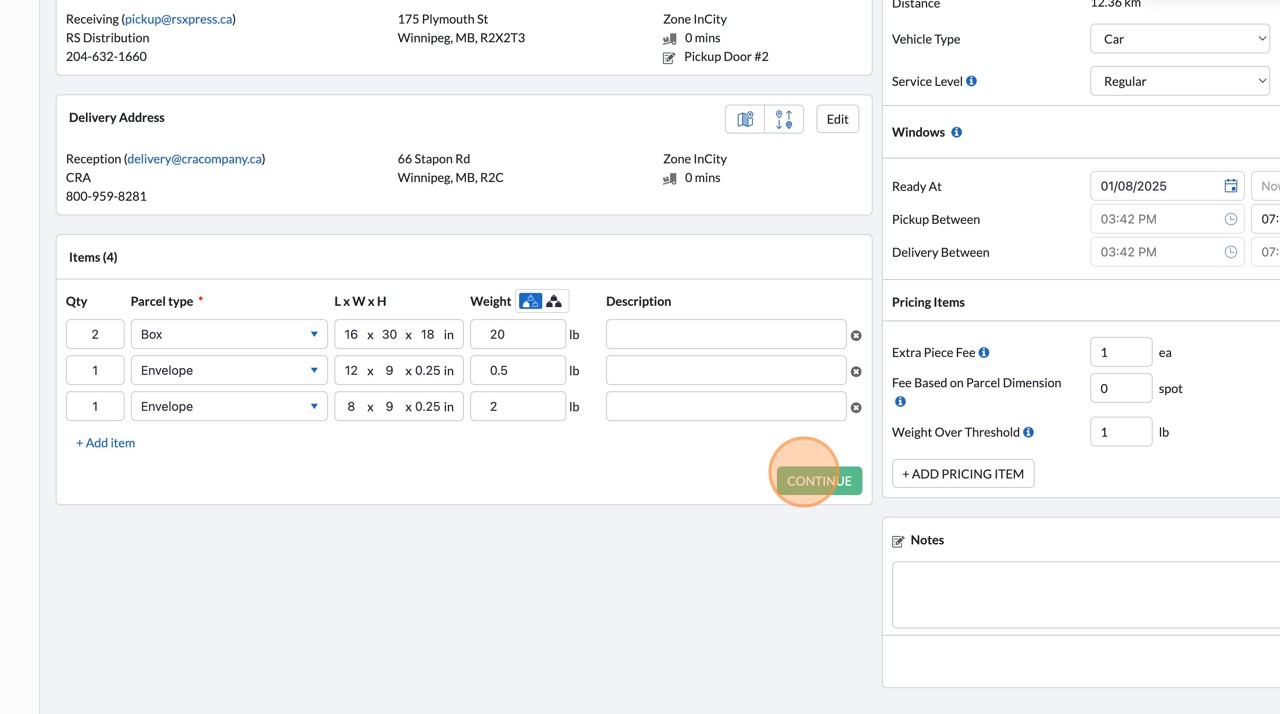
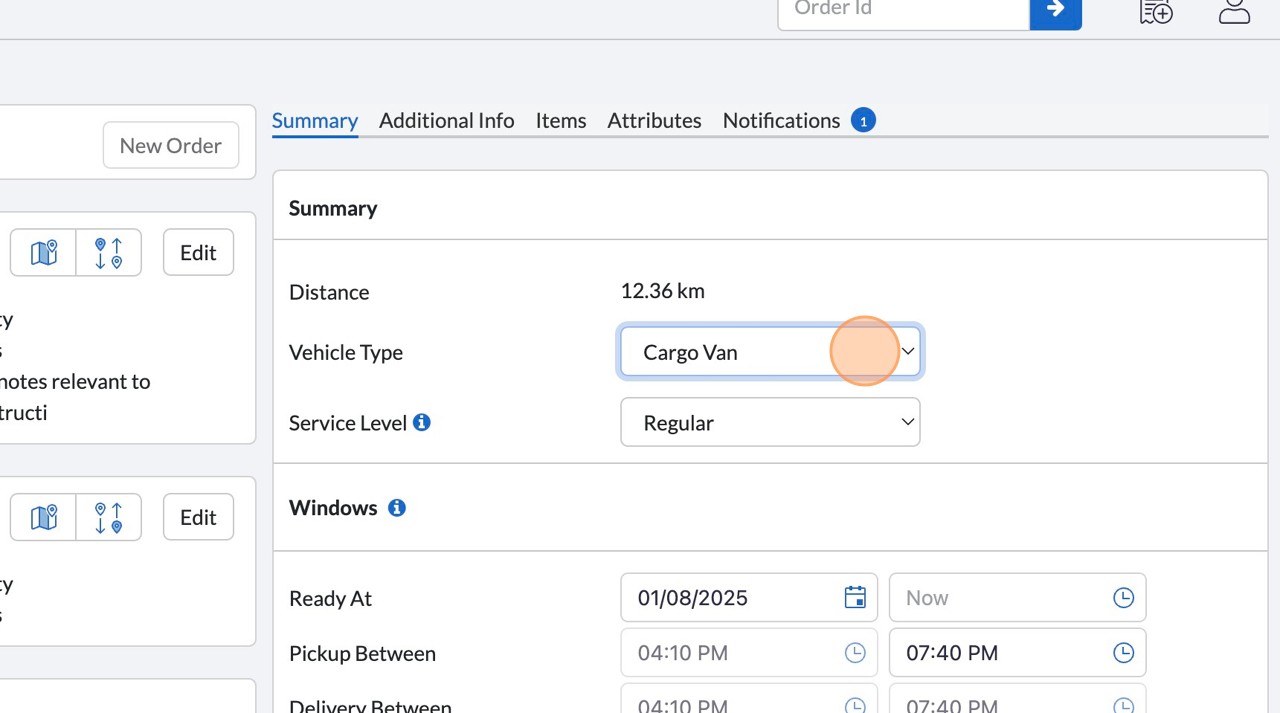
22. Select the vehicle type for the delivery
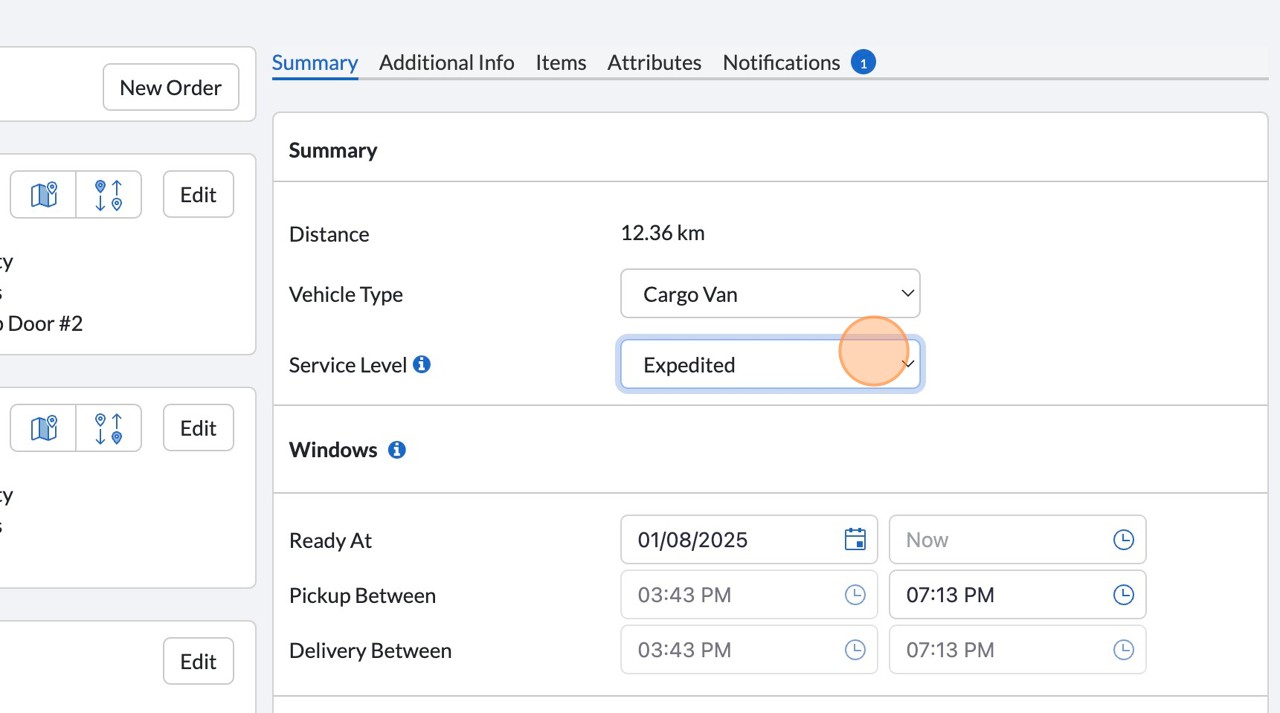
23. Select the service level needed
Tip! Hover over the (i) next to Service Level for additional details
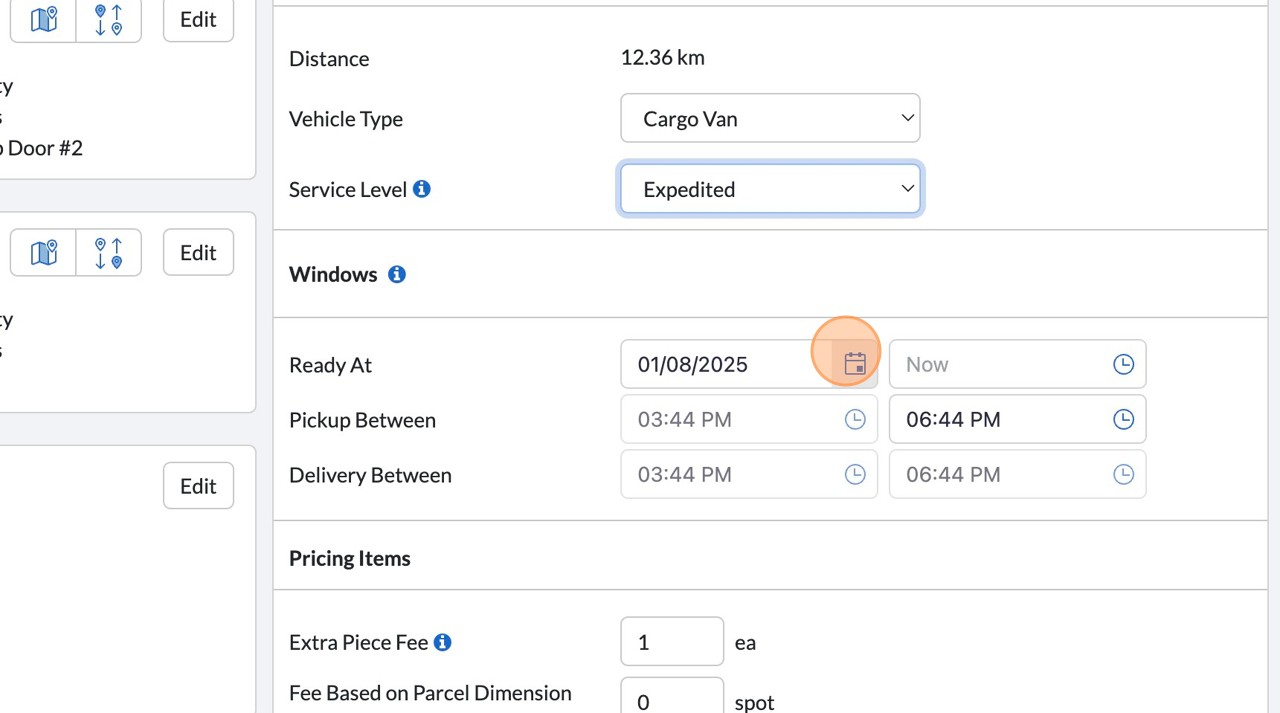
24. Adjust the date/time the pickup can be started
25. Add notes that pertain to the entire order
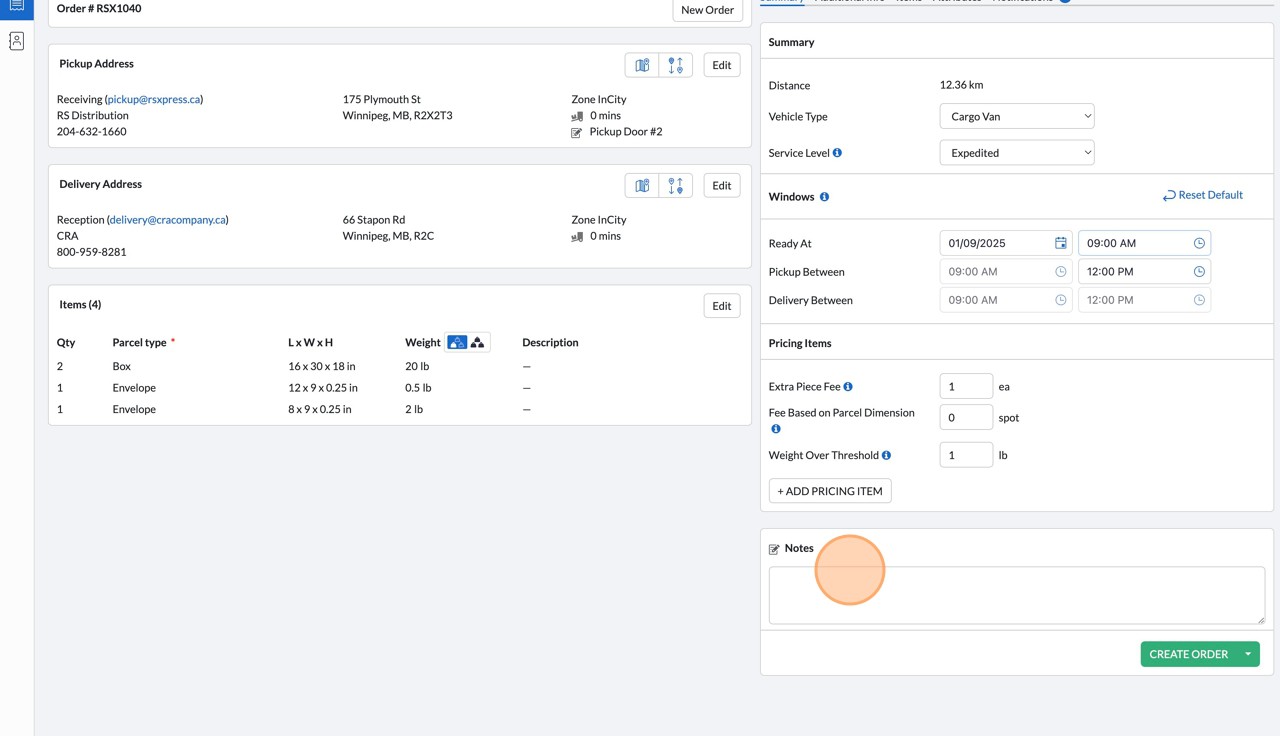
26. Click “Create Order”
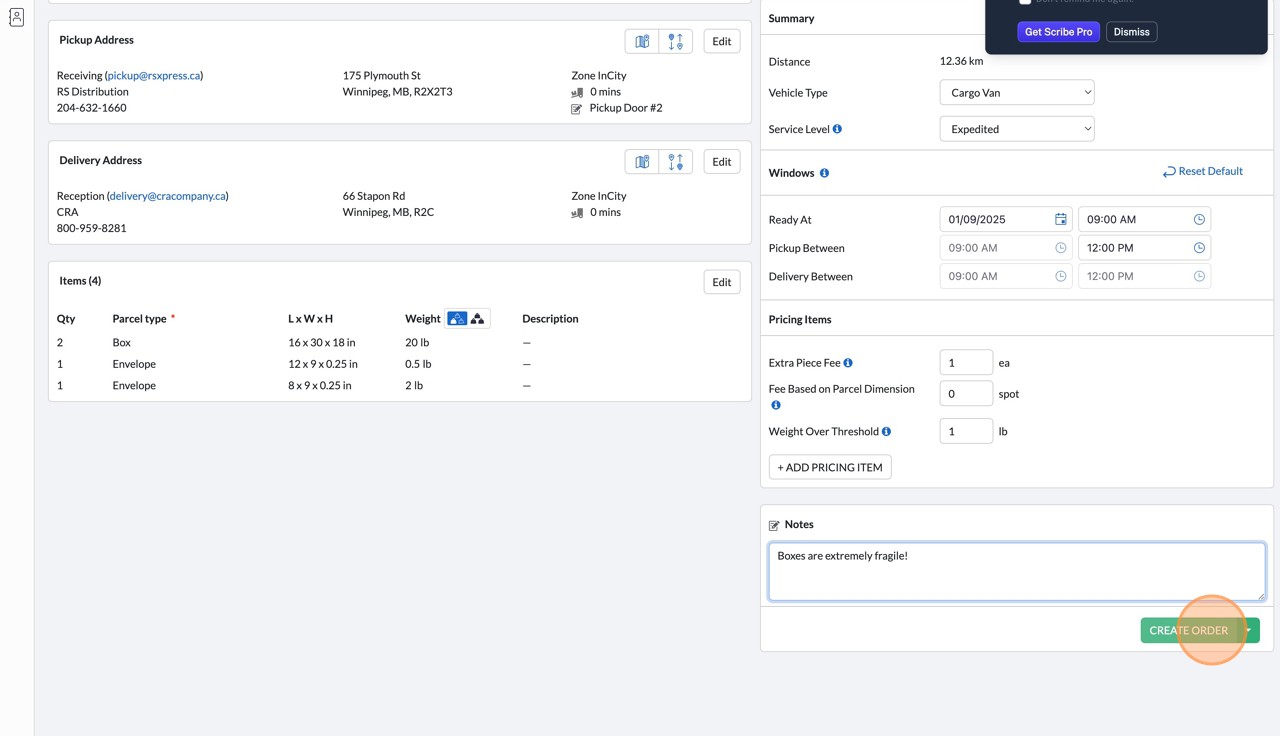
27. Done!
Our Commitment to ‘Delivering on your promises’
We believe that logistics is more than just moving goods—it’s about building trust and supporting our customers to ‘Deliver on your promises’. Our commitment is reflected in:
Transparent Communication
- Real-Time Tracking Solutions
- Safety-First Protocols
- Customer-Centric Problem Solving
We don’t just offer transportation and warehousing solutions —we strive to offer peace of mind knowing your inventory and goods are safe with us.